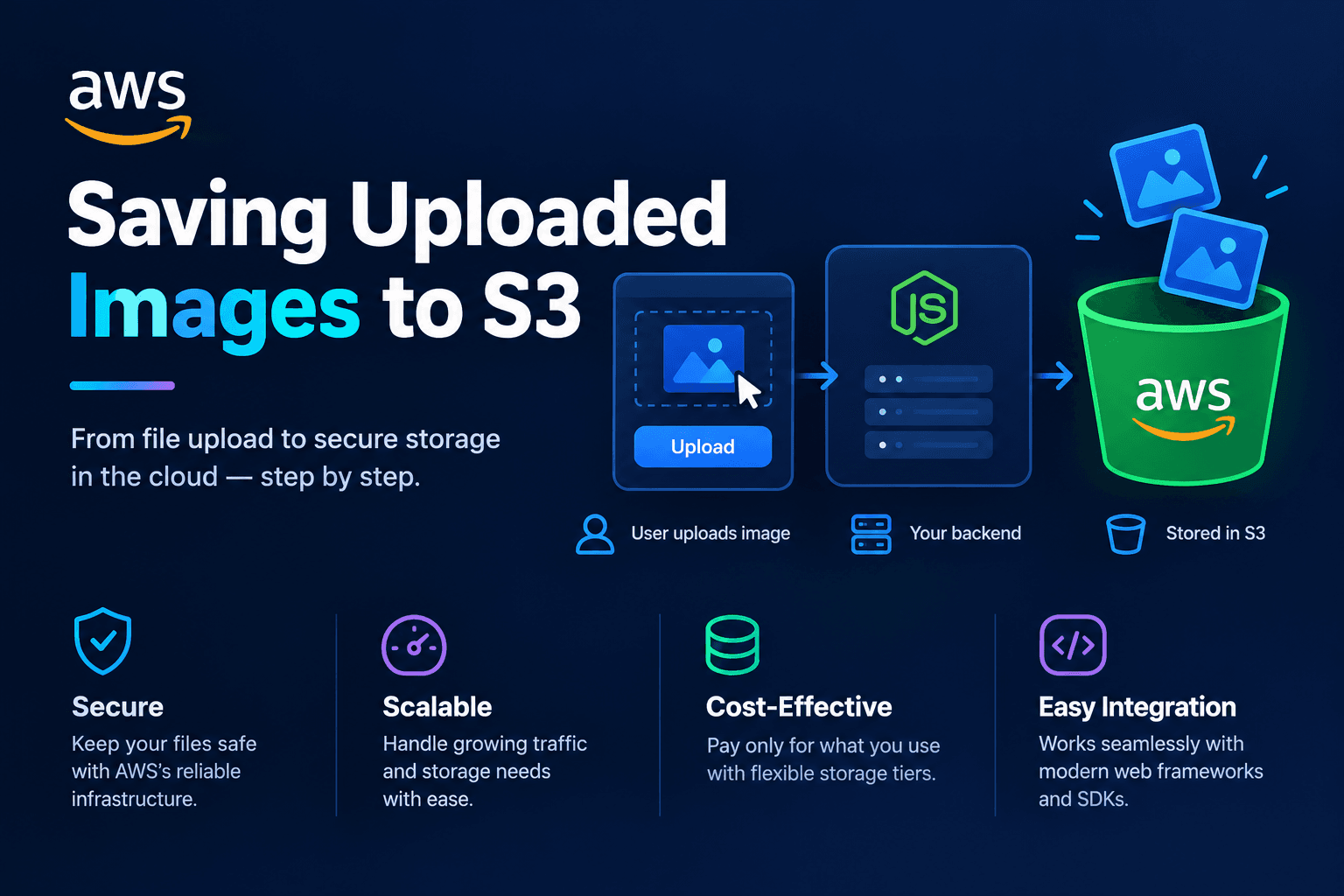
Saving uploaded images to S3
How a Node.js API writes the original file to Amazon S3 with PutObject and returns HTTP 202. Resizing happens later, not in the same request.
This post is about the first step of an image pipeline in Node.js on AWS. A client sends a photo to your API. You save the original file in Amazon S3. You answer with HTTP 202. You do not resize the image in that same request.
Sunday Pantry is a small recipe website. Users upload cover photos for recipes. That is the running example in this series.
If your Node.js handler waits for an image library such as Sharp to resize a 12 MB file before it replies, the HTTP connection stays open. The event loop stays busy with CPU work. A burst of uploads can stall the whole API.
Accept the file. Store the original. Return 202 Accepted. Processing comes later.
What Amazon S3 is
Amazon S3 is object storage. You put a blob of bytes in a bucket under a unique name called a key. The blob is the value. The key is how you fetch the object later.
S3 is not a disk with real folders. A slash in the key is only a prefix. The AWS console and SDKs display prefixes as folders so people can browse them.
After PutObject succeeds, the bucket holds one object with three parts:
- Key – a name such as
covers/a1b2c3…/original/sunday-soup.jpg. Keys are case-sensitive. A key can be up to 1,024 bytes of UTF-8. - Value – the raw bytes you sent.
- Metadata – system fields such as
Content-Type, plus optional user metadata.
The console may show a covers folder. That folder is the prefix plus /. If you open it, you still request the full key. There is no directory inode behind it.
A second PutObject with the same key replaces the object. If versioning is on, S3 keeps a new version instead of throwing the old bytes away. For cover photos, put a unique id in the key. Then two users who both upload cover.jpg do not overwrite each other.
A single PutObject can send up to 5 GB in one request. Recipe covers sit far below that. Multipart upload exists for huge files. You do not need it here.
S3 encrypts new objects with SSE-S3 by default. You can switch the bucket to AWS Key Management Service (KMS) later. The upload code in this post does not have to change for the default.
What HTTP 202 means
HTTP 202 Accepted means the server took the request and will finish the work later. The client gets an id it can poll. The cover is not ready for the recipe card yet.
200 OK would tell the client the work is done. 201 Created would tell the client the resource exists in its final form. Neither matches this step. The original file exists. The small WebP for the card does not.
Return 202 with a status field such as stored. You can switch to 200 later on a GET that reads DynamoDB and finds ready. That comes in a later post in this series.
A small example
Sunday Pantry has a POST /covers route. The API reads the multipart file, writes it to S3, and returns. There is no sharp() call. There is no thumbnail loop. There is no conversion to a second format.
import Fastify from "fastify";
import multipart from "@fastify/multipart";
import { randomUUID } from "node:crypto";
import {
  PutObjectCommand,
  S3Client,
} from "@aws-sdk/client-s3";

const app = Fastify({ logger: true });
await app.register(multipart);

const s3 = new S3Client({ region: "us-east-1" });
const COVERS_BUCKET = "pantry-covers";

app.post("/covers", async (request, reply) => {
  const file = await request.file();

  if (!file) {
    return reply.status(400).send({ error: "A cover image is required" });
  }

  if (!file.mimetype.startsWith("image/")) {
    return reply.status(400).send({ error: "Only image files are supported" });
  }

  const coverId = randomUUID();
  const objectKey = `covers/${coverId}/original/${file.filename}`;
  const bytes = await file.toBuffer();

  await s3.send(
    new PutObjectCommand({
      Bucket: COVERS_BUCKET,
      Key: objectKey,
      Body: bytes,
      ContentType: file.mimetype,
    }),
  );

  return reply.status(202).send({
    id: coverId,
    status: "stored",
    originalKey: objectKey,
  });
});
Here is what that handler does, line by line.
Fastify is the HTTP server. @fastify/multipart parses the uploaded file from the request body. S3Client is the AWS SDK client for S3. The region is us-east-1. The bucket name is pantry-covers.
request.file() reads the first file part. If there is no file, the route returns 400 and does not call S3. If the MIME type does not start with image/, it also returns 400. You reject empty bodies and non-image types before you spend an S3 call.
randomUUID() creates a coverId. That id is what the client keeps. Status rows, logs, and the queue message in the next article all hang off that id.
The object key is covers/${coverId}/original/${file.filename}. The prefix groups the original under that id. The prefix is for humans and for later workers. S3 does not treat it as a folder.
file.toBuffer() reads the bytes into memory. Then PutObjectCommand sends them. Bucket is the bucket name. Key is the object name. Body is the bytes. ContentType is the MIME type you already checked. Browsers and later GetObject calls use that header.
After S3 accepts the object, the route returns 202 with the id, status: "stored", and the key. The client can show that the cover is preparing and come back later.
To try the same SDK calls without an AWS account, point the client at a local emulator such as LocalStack. Set endpoint, test credentials, and forcePathStyle: true for S3. The commands stay the same.
You can list keys after a test upload to confirm the prefix:
import { ListObjectsV2Command } from "@aws-sdk/client-s3";

const listed = await s3.send(
  new ListObjectsV2Command({
    Bucket: COVERS_BUCKET,
    Prefix: `covers/${coverId}/`,
  }),
);
Prefix is a filter on key names. It is not a directory. ListObjectsV2 returns objects whose keys start with that string.
How it works
The request path is short on purpose.
- Reject empty bodies and non-image types.
- Create a
coverId. - Build a key that groups the original under that id.
- Send
PutObjectwith the bytes and aContentType. - Answer
202with the id and the key.
Even without a queue, this route already has a job.
Validate type and size at the edge you control. Persist the original. You can always derive a WebP later. You cannot reconstruct a 12 megapixel JPEG from an 800 px thumbnail.
Return a stable id. Stay fast. The handler should read the stream, put the object, and respond.
Keep pantry-covers private. The API uses IAM credentials, or a task role, to call PutObject and later GetObject. The public site should not list the bucket.
When a resized image exists, serve it through CloudFront or a short-lived GET URL. Putting public-read on originals is how raw 12 MB files leak.
CORS does not matter on this path. The browser talks to your API, not to S3. CORS shows up when the client PUTs to a presigned URL. That is later in the series.
Common mistakes
Resizing inside the POST. CPU work on the request thread makes latency track the largest photo, not the network. A few concurrent 12 MB files will queue behind Sharp. Move pixel work out of the handler.
Using the original filename as the only key. cover.jpg collides. Two recipes, one object, one of them gone. Put a unique id in the key.
Skipping ContentType. Downloads then arrive as application/octet-stream. Browsers guess the type. Set the type you already validated.
Treating S3 like a disk path. ../ segments and odd characters in keys are legal in some cases and painful in others. Stick to letters, digits, hyphens, and slashes. Decode keys later when events URL-encode them. That is a later post.
Returning 200 when the resize is not done. The client will render a broken <img> while the resized file does not exist. 202 plus a status field matches the real state.
Loading the whole file into memory without a cap. file.toBuffer() is fine for a cover with a body-size limit. It is not a plan for 2 GB video. Enforce fileSize on the multipart parser.
Returning 201 Created as if the recipe page can show the cover. 201 says the resource exists in its final form. The original exists. The card image does not. 202 plus status: "stored" is the accurate pair.
When you do not need this
If every photo is already small, and the resize finishes in tens of milliseconds, and you have one user, an in-request Sharp call will work. The moment uploads can pile up, or you care about a timeout on a reverse proxy, store first and process next.
Synchronous resize also couples API scaling to CPU. Object storage plus a later worker lets you scale the HTTP process and the pixel process apart.
Sunday Pantry can accept a cover, keep the original in S3, and return an id. Nothing has been resized yet. The next article adds a queue so a separate process can pick up that id without blocking the upload.
Further reading
- Amazon S3 objects overview – keys, values, and metadata
- Uploading objects –
PutObjectsize limits and multipart - Naming Amazon S3 objects – prefixes, safe characters, and sort order
- Next in this series: Using SQS between upload and image processing (coming soon)
Related posts
- Using SQS between upload and image processing
How to send a small job to Amazon SQS after the file is in S3. Covers SendMessage, long polling, visibility timeout, and deleting the message only after the worker finishes.
- Log-Structured Merge Trees: Fast Writes Without Rewriting Pages
How LSM trees buffer writes in memory, flush sorted files, compact in the background, and trade read and space costs for high ingest – plus when a B-tree still fits better.
- Database Indexes Explained: Find Rows Without Scanning Everything
A practical guide to database indexes: what they are, how B-trees find rows, when composite and covering indexes help, and when another index only slows your writes.